
ASUS ProArt PA248QV
4.6Editor score
WUXGA resolution display
100% sRGB coverage
Ergonomic adjustable stand
Finding the right display for creative work requires careful consideration of color accuracy, resolution, and connectivity options that match your specific workflow needs and budget constraints.
We analyzed ten top-rated ASUS Proart monitors based on professional specifications, user feedback, and industry standards to help you identify the best display for your setup.
Each pick highlights key strengths and potential trade-offs so you can make an informed decision while noting that prices and availability may fluctuate over time.
4.6Editor score
4.2Editor score
As an Amazon Associate we earn from qualifying purchases.
This side-by-side comparison highlights the core specifications and key features of each model to help you quickly identify the right monitor for your professional needs.




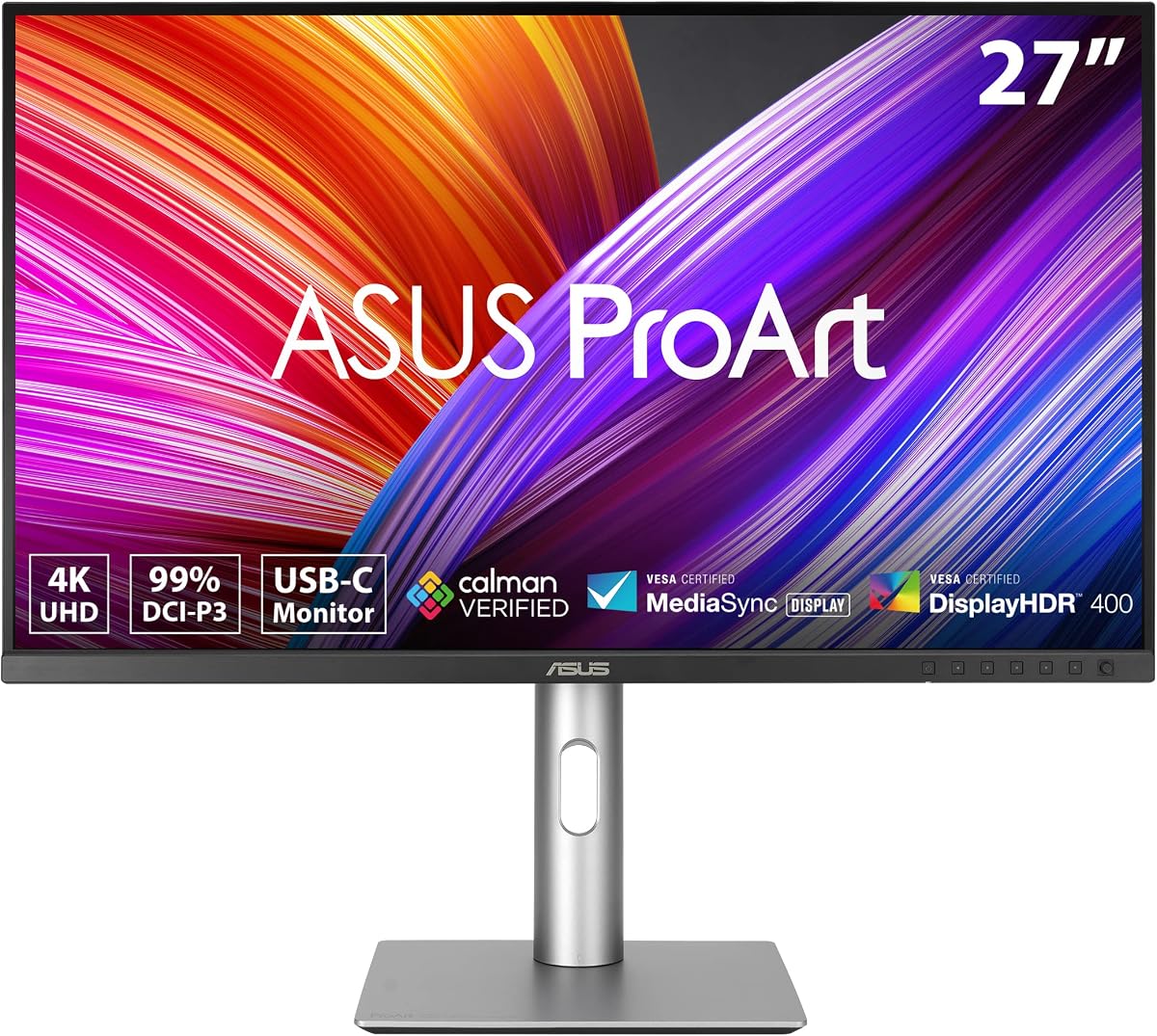
The ASUS ProArt PA279CRV stands out as a top choice for professionals needing reliable color accuracy and high resolution. It holds a solid rating from users who appreciate its consistent performance across creative tasks.
We may earn a commission when you buy through this link, at no additional cost to you.
Its factory calibration ensures Delta E less than two which means colors match industry standards without requiring extra hardware. The 4K resolution provides sharp detail for editing photos or designing graphics with precision.
While the price is higher than some budget options the included warranty and Adobe subscription add significant value. The USB-C port simplifies setups by powering laptops while delivering video signals through one cable.
If you need a dependable monitor for professional workflows this model offers the right balance of features. It is particularly well-suited for designers who need accurate color reproduction daily.
The Calman Verified certification ensures that what you see on screen matches print outputs or client deliverables accurately.
DisplayPort over USB-C with power delivery reduces cable clutter and allows single cable connection to Mac or PC laptops.
We may earn a commission when you buy through this link, at no additional cost to you.
For buyers seeking professional color accuracy without a premium price tag the ASUS ProArt PA248QV delivers impressive value. It has earned high praise from users who need reliable performance on a budget.
We may earn a commission when you buy through this link, at no additional cost to you.
Its 100% sRGB coverage ensures vibrant and true-to-life colors which is essential for web design or general content creation. The WUXGA resolution offers more vertical space than standard HD screens.
While it lacks the highest resolution available the monitor still provides sharp text and images for daily tasks. The anti-glare coating helps reduce eye strain during long working hours significantly.
This model is ideal for students or freelancers entering the creative field. It proves that you do not need to spend a fortune to get factory calibrated color performance.
The combination of Calman Verified accuracy and low cost makes this a smart starting point for new professionals.
Tilt pivot and height adjustments allow you to customize the view and reduce neck or back strain effectively.
We may earn a commission when you buy through this link, at no additional cost to you.
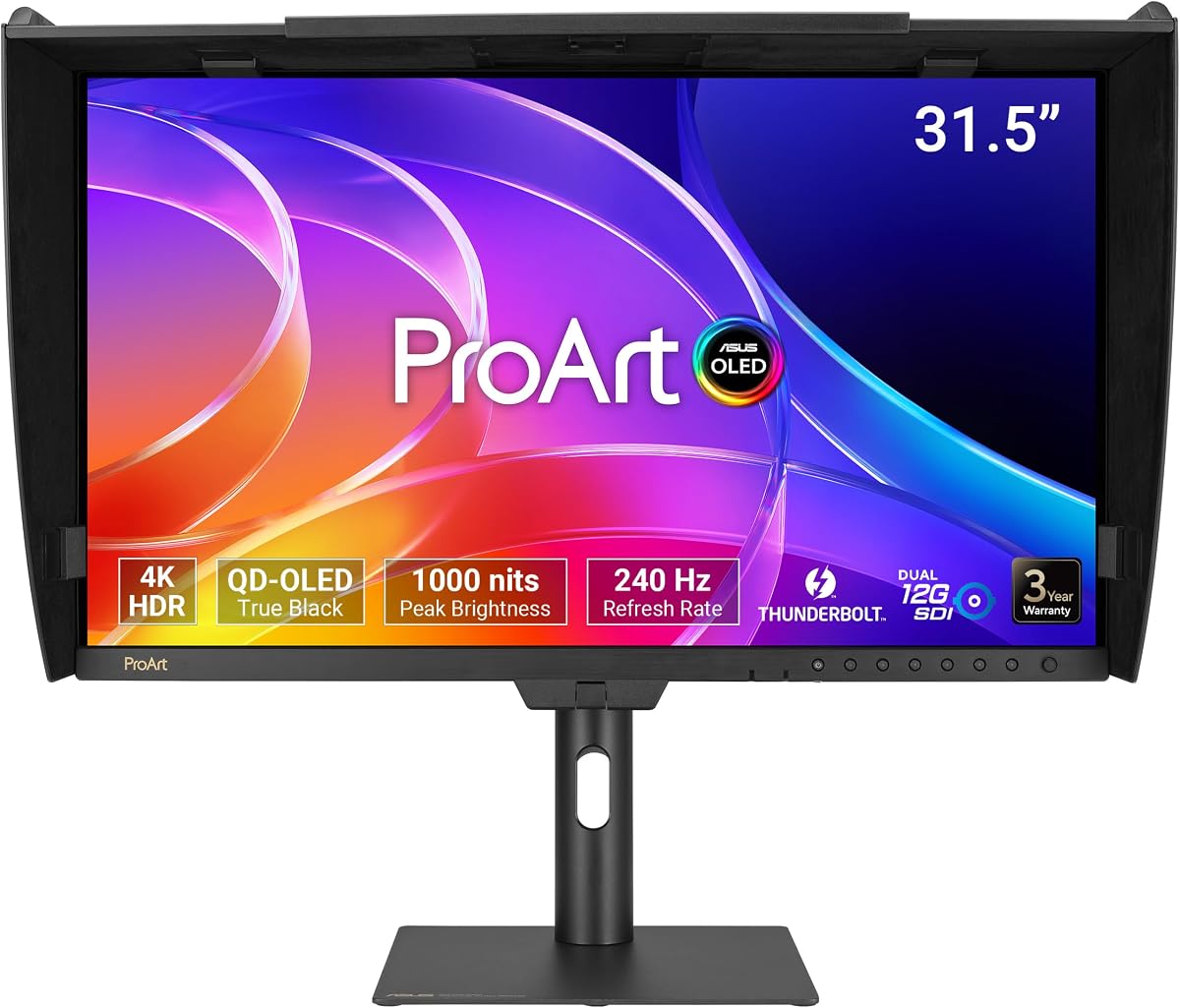
The ASUS ProArt PA32USD represents the pinnacle of display technology for professional video editors and content creators. It combines OLED performance with industry-standard connectivity for demanding environments.
We may earn a commission when you buy through this link, at no additional cost to you.
Its QD-OLED panel delivers true blacks and infinite contrast which enhances visual fidelity for HDR content. The hardware calibration technology ensures colors remain accurate over time without drift.
While the cost is substantial the included monitor hood and professional SDI ports justify the investment for studios. The fast refresh rate also supports smooth playback during editing workflows seamlessly.
If you work with high-end video production this monitor provides the tools needed for precision. It is built for professionals who require the absolute best color and contrast performance.
OLED technology allows each pixel to turn off completely creating perfect blacks that improve dynamic range significantly.
Dual 12G-SDI ports allow direct connection to broadcast equipment without needing external converters or extra adapters.
We may earn a commission when you buy through this link, at no additional cost to you.
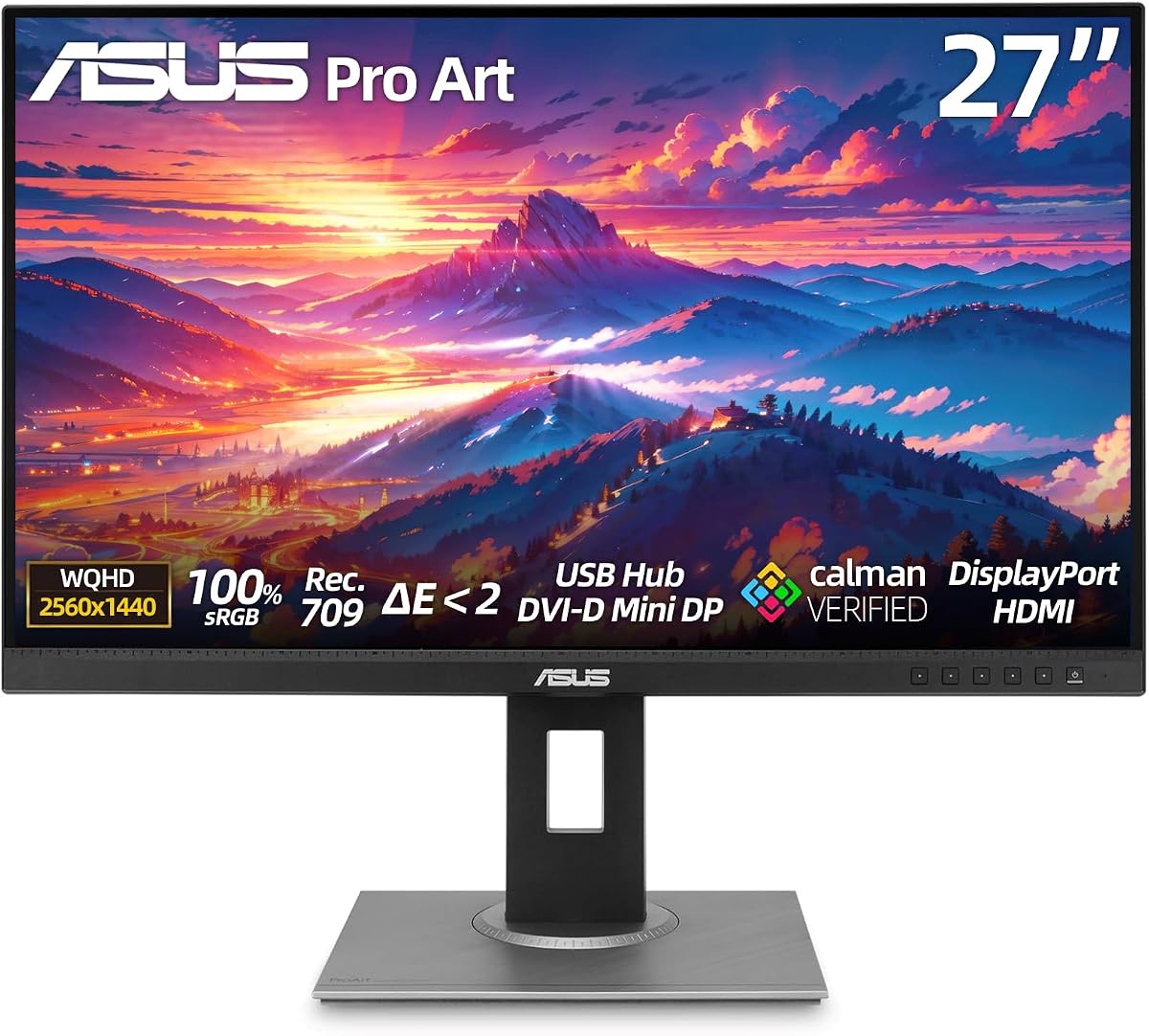
The ASUS ProArt PA278CV is a practical choice for developers and designers who need a reliable 1440p display. It balances performance and features well for its price range.
We may earn a commission when you buy through this link, at no additional cost to you.
Its 100% Rec. 709 coverage ensures video editing colors look correct across different devices. The 65W USB-C delivery is sufficient for most ultrabooks during standard work.
The vertical pivot option is especially helpful for coding or reading long documents which boosts productivity significantly. However the stand design is functional rather than sleek compared to higher-end models.
This monitor works well for teams or individuals needing multiple screens. The daisy-chain support helps manage cables when connecting two units to one computer easily.
Daisy-chaining allows you to connect a second monitor through the first one keeping your desk clean and organized.
Pivoting the screen vertically provides more vertical space for code which reduces scrolling and improves focus.
We may earn a commission when you buy through this link, at no additional cost to you.
The ASUS ProArt PA279CV has earned a perfect rating from users who value comfort and color fidelity equally. It is an excellent choice for long work sessions without strain.
We may earn a commission when you buy through this link, at no additional cost to you.
Its Eye Care technology eliminates flicker and reduces blue light which helps protect vision over time. The WQHD resolution offers sharp text for reading documents or coding comfortably.
While it lacks advanced ports like high-wattage USB-C the display still performs well for standard creative tasks. The full ergonomic adjustability helps you find the ideal viewing height quickly.
For users prioritizing health alongside image quality this model is highly recommended. It provides the essential professional features without unnecessary complexity in the design.
Flicker-free technology ensures the backlight remains stable which prevents fatigue during extended editing or writing tasks.
Factory calibration guarantees that sRGB colors remain consistent across different viewing angles and lighting conditions.
We may earn a commission when you buy through this link, at no additional cost to you.
The ASUS ProArt PA329CRV-P offers a larger screen for professionals who need more visual real estate for multitasking. It also meets specific compliance standards for government purchasing.
We may earn a commission when you buy through this link, at no additional cost to you.
Its 98% DCI-P3 coverage ensures that colors look vibrant and true to life for media work. The USB-C port supports up to 96W power delivery which can charge high-performance laptops.
Being TAA compliant makes it suitable for organizations that require trade agreements compliance in their procurement. The included cables simplify setup so you can start working immediately.
If you require a bigger canvas for design or data analysis this monitor is a strong option. It combines professional color accuracy with the larger size needed for complex tasks.
Meeting Trade Agreements Act requirements ensures this monitor is eligible for government contracts and institutional buyers.
The 32 inch size allows you to view multiple windows side by side without feeling cramped on the screen.
We may earn a commission when you buy through this link, at no additional cost to you.
The ASUS ProArt PA32UCR-K is built for professionals who require high brightness and precision in their HDR workflow. It includes a dedicated calibration tool out of the box.
We may earn a commission when you buy through this link, at no additional cost to you.
Its Mini-LED backlight provides exceptional brightness that enhances detail in bright scenes significantly. The included X-rite i1 Calibrator simplifies the process of achieving accurate colors consistently.
While some user reports show mixed experiences the technology remains powerful for high-end color work. The calibration profile write-back feature ensures consistent performance over long periods.
For video editors working with HDR content this monitor offers the necessary tools for quality assurance. It is a specialized choice for those prioritizing brightness and calibration accuracy.
Having the X-rite device included saves money and ensures you have the right tool for precise color measurement.
Peak brightness of 1000 cd/m2 makes HDR content pop and provides clear visibility in well-lit environments.
We may earn a commission when you buy through this link, at no additional cost to you.
The ASUS ProArt PA278CGV offers a high refresh rate that benefits professionals who also enjoy gaming or smooth animations. It balances creative features with performance capabilities.
We may earn a commission when you buy through this link, at no additional cost to you.
Its 95% DCI-P3 coverage ensures vibrant color reproduction for photo editing tasks. The 90W USB-C delivery is powerful enough to handle demanding laptops during heavy work.
While the price is higher than standard models the added refresh rate provides a smooth experience for all types of content. This makes it versatile for mixed usage scenarios.
For creatives who want a display that can also handle leisure activities this model is a strong pick. It provides the speed and color accuracy needed for both work and play.
A 144 Hz refresh rate ensures fluid motion in videos or interfaces which reduces motion blur and eye strain.
This monitor bridges the gap between professional editing tools and consumer grade performance features effectively.
We may earn a commission when you buy through this link, at no additional cost to you.
The ASUS ProArt PA32UCG-K delivers exceptional brightness that exceeds many competitors in the professional monitor space. It uses Mini-LED technology for high dynamic range performance.
We may earn a commission when you buy through this link, at no additional cost to you.
With 1600 nits peak brightness it can display vibrant highlights in HDR content accurately. The local dimming zones help improve contrast and reduce halo effects around bright objects.
While user ratings are lower the technical specifications are impressive for high-end video production. It supports multiple HDR formats and provides tools for precise color management.
If you work in a very bright environment this monitor ensures visibility remains clear. It is designed for professionals who need the highest levels of brightness and color precision.
The high sustained brightness ensures that the screen remains visible even in offices with strong lighting.
True 10-bit color depth provides over one billion colors for smooth gradients without banding or artifacts.
We may earn a commission when you buy through this link, at no additional cost to you.
The ASUS ProArt PA32QCV offers a 6K resolution that matches the high pixel density of modern Mac displays. It is optimized for users who rely on Apple hardware daily.
We may earn a commission when you buy through this link, at no additional cost to you.
Its MacBook Color Matching feature helps ensure that images look consistent across different Apple devices. The Auto KVM switch allows you to control multiple computers with one keyboard and mouse.
While the price is high the integration with Mac systems provides a seamless workflow for designers. The Thunderbolt 4 connectivity ensures fast data transfer and video output.
For Mac users seeking the highest resolution and color consistency this monitor is ideal. It reduces the friction between your workstation and the tools you use regularly.
The color preset mode matches the P3 space of Macs which ensures consistent colors across your ecosystem.
Auto KVM lets you switch inputs automatically which saves time when working with multiple devices simultaneously.
We may earn a commission when you buy through this link, at no additional cost to you.
Selecting the right monitor requires understanding key factors that impact your workflow quality and comfort.
Resolution determines the sharpness of text and images. Higher resolutions like 4K provide more workspace for detailed design work but require more powerful hardware to drive. Screen size affects how much content you can view at once without excessive scrolling. Larger screens are better for multitasking while smaller ones save desk space.
Choose a resolution and size that match your primary tasks and available desk space for optimal productivity.
Professional color accuracy ensures your designs look consistent across different devices and print. Gamut coverage such as sRGB or DCI-P3 defines the range of colors the monitor can display. Factory calibration with low Delta E values means colors are accurate out of the box. Look for Calman Verified models to ensure reliable color performance.
Prioritize monitors with wide gamut coverage and factory calibration for professional creative work.
Connectivity ports determine how easily you can attach your devices. USB-C with power delivery simplifies setups by charging laptops while delivering video. Thunderbolt support offers faster data transfer for high-resolution displays. DisplayPort daisy-chain allows multiple monitors on one port. Ensure the ports match your current devices.
Select a monitor with ports that fit your current setup to avoid needing extra adapters or cables.
An ergonomic stand helps prevent neck and back strain during long work sessions. Look for adjustments including tilt swivel pivot and height. Pivot is useful for vertical layouts like coding. A stable base is also important to prevent wobbling. Comfort should be a key factor in your choice.
Ensure the stand offers full adjustability to maintain a healthy posture while working.
Refresh rate affects how smooth motion looks on screen which matters for video playback or gaming. Response time indicates how fast pixels change color reducing blur. While static content needs less speed a higher refresh rate enhances overall usability. Consider your specific use cases when comparing these metrics.
Higher refresh rates provide smoother visuals but may not be necessary for all professional workflows.
High Dynamic Range allows for deeper blacks and brighter highlights in content. Brightness measured in nits ensures visibility in well-lit rooms. Professional HDR standards vary so check for specific certifications. If you work with HDR video ensure the monitor supports the format you need.
Choose brightness levels suitable for your room lighting to avoid eye strain and ensure clarity.
A strong warranty provides peace of mind for expensive hardware. Many professional monitors offer extended warranties after online registration. Check the terms for dead pixel policies and customer support availability. Reliable support is essential when your workflow depends on the display.
Review warranty terms carefully to ensure coverage matches your long-term usage needs.
Extras like Adobe Creative Cloud trials or included calibration tools add value to your purchase. Eye care features reduce fatigue during long hours. Built-in hubs can declutter your desk by connecting peripherals. Identify features that truly improve your daily workflow.
Focus on add-ons that solve specific problems rather than features you may not use often.
Begin by setting up the monitor on a stable surface that supports its base properly. Connect your video source using the appropriate cable such as DisplayPort or USB-C. Adjust the stand height and tilt to align the screen with your eye level.
Calibrate the display using built-in settings or external tools for accurate colors. Install relevant drivers and update firmware to maintain performance over time. Use presets like sRGB or DCI-P3 depending on your current work task.
Clean the screen with a microfiber cloth and avoid harsh chemicals. Ensure adequate ventilation around the device to prevent overheating. Adjust brightness and blue light settings to reduce eye strain during evening work.
Yes they are excellent for photo editing due to their wide color gamut and factory calibration. They offer Delta E less than two accuracy out of the box. This ensures your photos look true to life on screen and print.
Many models feature USB-C or Thunderbolt ports which connect easily to Macs. Some include specific presets for MacBook color matching. They support macOS scaling and display settings seamlessly for professional workflows.
USB-C power delivery allows a single cable to charge your laptop and transfer video. This reduces cable clutter on your desk. It simplifies setup for laptops without needing a separate charger.
Factory calibration ensures colors are accurate immediately without extra tools. It saves time and money on manual calibration equipment. You can trust the display for critical color work from the start.
Daisy-chaining allows multiple monitors to connect via one DisplayPort cable. This reduces the number of ports needed on your computer. It helps keep cables organized for a cleaner desk setup.
Ergonomic adjustments help you maintain a healthy posture during long work hours. Tilt swivel pivot and height options reduce strain on your neck and back. Comfort is essential for consistent productivity and well-being.
We have reviewed ten top models covering a range of budgets and needs. The PA279CRV offers the best all-around performance for professionals. The PA248QV provides excellent value for budget-conscious buyers.
When choosing prioritize color accuracy and connectivity that match your daily tasks. Consider ergonomics to ensure comfort during long sessions. A display that fits your workflow will pay off over time.
Prices and stock fluctuate so check current availability before making a decision. These monitors represent strong investments for professional creative work. Select the model that aligns best with your specific goals.